
Overview
Sentiment Analysis for Manager Insights brings AI-powered sentiment scoring directly into the Seer Manager Insights experience. Managers can now see, at a glance, how their team is feeling based on the comments left in surveys - without having to read every response individually.
Each comment is automatically scored as Positive, Negative, Neutral, or Mixed, and an overall Sentiment Score is displayed at the top of the Comments Tab. Managers can also filter comments by sentiment type to quickly focus on the feedback that needs the most attention.
Roles/Permissions
- Seer Admins - can enable and configure Sentiment Analysis for Manager Insights
- People Managers - can view sentiment scores, breakdowns, and filters within their Manager Insights dashboards
What Managers Will See
Once enabled, the Comments Tab in Manager Insights will display:
Element | Description |
Overall Sentiment Score | Calculated as the percentage of positive comments minus the percentage of negative comments |
Sentiment Breakdown | A split showing the percentage of Positive, Neutral, Negative, and Mixed comments |
Per-Comment Sentiment Label | Each individual comment is labelled with its sentiment category |
Sentiment Filter | Managers can filter to show only Positive, Negative, Neutral, or Mixed comments |
Sentiment scores update dynamically when other filters are applied — for example, filtering by round, segment, or engagement driver will recalculate the sentiment to reflect only the filtered group.
Sentiment Score Scale
Overall Sentiment scores fall into the following categories:
Very Negative: −100 to −60
Negative: −60 to −20
Neutral: −20 to +20
Positive: +20 to +60
Very Positive: +60 to +100
How to Enable Sentiment Analysis
Step 1
Navigate to Manage Seer → Manager Insights → Advanced Settings
Step 2
Toggle Show Sentiment Analysis to ON
To disable, return to the same location and switch the toggle to OFF
How Managers Use Sentiment Analysis
Step 1
Navigate to Manager Insights → Comments Tab
Open your Manager Insights dashboard and select the Comments Tab.
Step 2 - Review the Overall Sentiment Score and Breakdown
The Overall Sentiment Score and Breakdown (Positive / Neutral / Negative / Mixed split) are displayed automatically at the top of the tab.
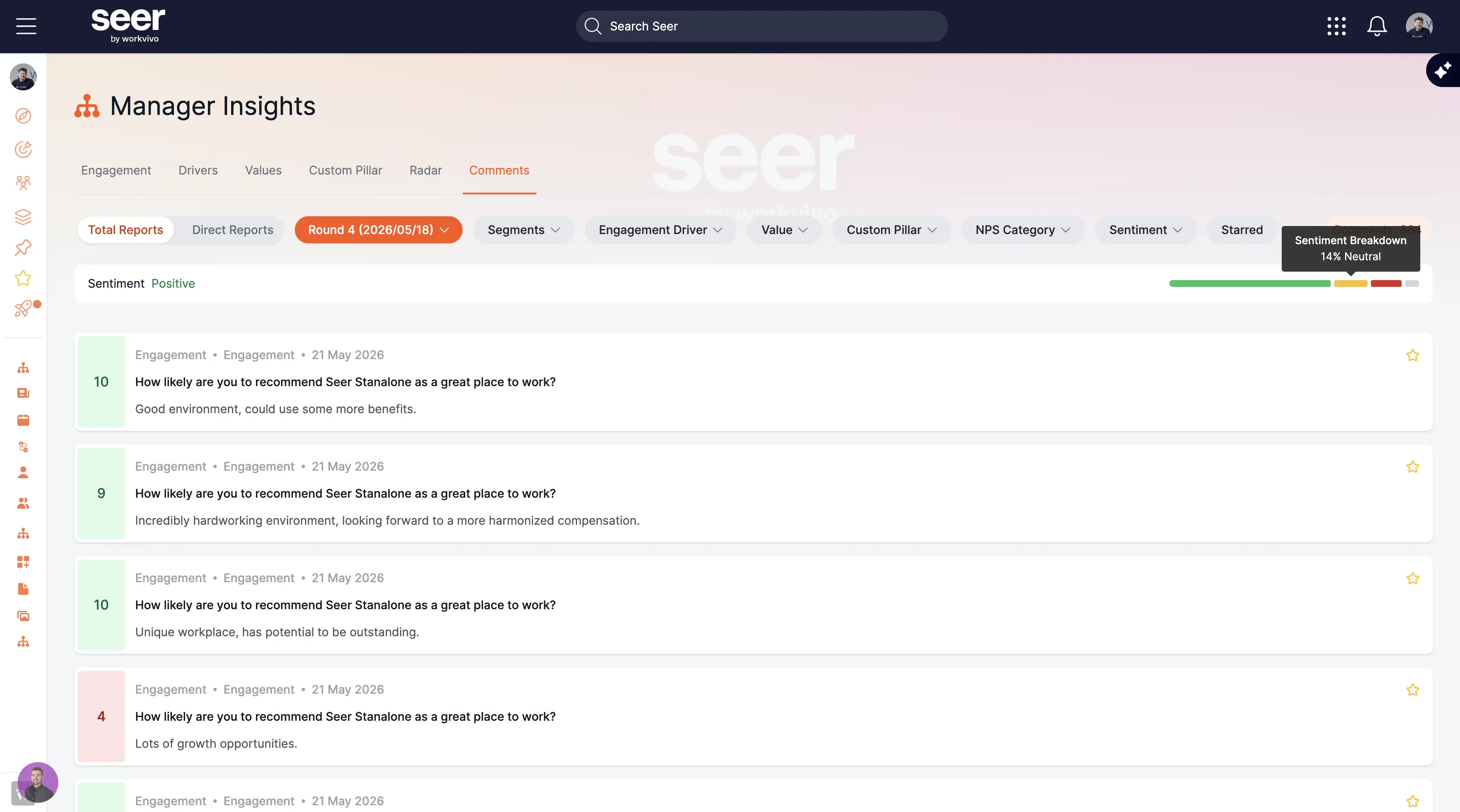
Step 3 - Toggle Between Total Reports and Direct Reports
Use the Total Reports / Direct Reports toggle to switch the sentiment view between your full reporting line and your direct reports only.
Step 4 — Apply Filters to Refine the Sentiment View
Apply any available filter - such as round, segment, engagement driver, goal, or custom driver - and the sentiment scores will automatically update to reflect only the filtered group.
Note
- Comments containing only emojis or special formatting are classified as Neutral.